Overview
Never charge the Traumschreiber via USB and use it connected to the body at the same time. The rule is always: either charging or measuring – never both at once.
The Traumschreiber enforces this itself: when the USB cable is plugged in, the LED flashes red 5 times, a loud, low beep sounds, a running recording is saved and the device switches itself off. To continue, unplug the cable and switch the device off and on again. Easiest: set the switch to off before charging – it still charges.
Step by Step
-
1Insert SD card
Make sure the Traumschreiber is switched off. Slide the SD card into the slot – you should feel a soft click.
-
2Switch on
Slide the switch on the side of the housing to the on position. The Traumschreiber will now boot.
-
3LED Demo & Start Tone
Right after startup the LED fades in green. If an SD card is inserted, the start tone follows: a short chime and the spoken word "Traumschreiber". Then the LED flashes green twice and pulses blue until the app connects. Without an SD card it stays silent – the LED still shows the green sequence, just a few seconds later.
Reading the Battery Level
The LED flashes 1 to 10 times. Each flash equals ~10 % battery capacity. The colour gives additional info: red means low, yellow is mid, green means full. Each flash lasts ~300 ms followed by 150 ms pause.
-
4Switch off Traumschreiber
Slide the switch back to the off position.
-
5Remove the SD card safely
Only when the device is fully switched off may the SD card be removed. Press briefly – the card springs out.
Charging the Battery
-
6Connect USB-C cable
Switch off the Traumschreiber and plug in a USB-C cable. The device will start charging immediately. Whether an SD card is inserted or not makes no difference for charging.
-
7Read charge status from LED
Solid red → charging. · Solid green → fully charged. From empty to full takes about 2 hours. A full battery enables over 16 hours of continuous recording.
Once electrodes are attached to the body, the USB charging cable must not be connected. Always: either charging or measuring – never both at the same time.
Attaching Electrodes
Attach the first electrode on the right side of your chest, directly below the right collarbone. The skin should be dry and clean.
Attach the second electrode at the left lower rib margin. This distance between the two points produces a good ECG lead (Einthoven position).
- Rub the skin with a cloth beforehand
- Use self-adhesive gel electrodes
- Hair in the electrode area can reduce contact quality
- Sit or lie as still as possible during recording
Making a Recording
-
1Insert SD card (device off!)
Make sure the Traumschreiber is switched off, then insert the SD card.
-
2Switch on
Slide the switch to the on position. The start tone plays (if SD card present) and the LED demo runs briefly.
-
3Wait 60 seconds
The Traumschreiber starts recording all channels immediately. Stay still – movement creates artefacts in the signal. After about 60 seconds you have an analysable ECG sequence.
-
4Switch off
Slide the switch back to the off position. The recording is automatically finalised and written to the SD card.
-
5Remove SD card
Only once the device is fully off: press the SD card briefly, it springs out. Never remove during operation!
ADC/ as a file with the extension .edf. Files are numbered sequentially (e.g. AD0001.EDF, AD0002.EDF, …).
What is the EDF Format?
EDF stands for European Data Format and is an open, standardised file format for continuous biosignals such as EEG, ECG, EMG or respiration. It was developed in 1992 by Bob Kemp and José Varela and is today the most widely used format in clinical sleep and neurophysiology research.
EDF supports multiple parallel signal channels with different sample rates – ideal for storing ECG, EEG and other sensors simultaneously in a single file, as the Traumschreiber does.
Opening the File with EDFbrowser
EDFbrowser is a free, cross-platform programme (Windows, macOS, Linux) for viewing and analysing EDF files. Search the web for "EDFbrowser download" and download the current version for your operating system.
- Launch EDFbrowser.
- File → Open (or
Ctrl+O) and navigate to your SD card. - In the folder
ADC/select the.edffile and open it. The "Add signals" dialog appears. - On the left you see all channels. Which channel contains the ECG depends on which inputs the electrodes are connected to: with 3–4 electrodes typically Channel 6 and 8 (EEG Ch6 / Ch8) are active, with 8 electrodes rather Channel 1 and 3 (EEG Ch1 / Ch3). You can also simply add all eight channels one by one and see which one shows heartbeats.
- Click "Add signal(s)" first – the channel appears on the right in the Signal Composition. Then click "Make derivation". The signal is loaded into the main window. Repeat for each additional channel you want to check.
- Close the dialog with "Close".
- Use the mouse wheel or zoom buttons to adjust the time axis – start with a window of about 5–10 seconds to see individual heartbeats.
- You should now see a rhythmic waveform with the typical ECG deflections.
- P wave: Small, rounded deflection – atrial depolarisation
- QRS complex: Sharp, large deflection – ventricular depolarisation (the heartbeat itself)
- T wave: Broad, flat deflection – ventricular repolarisation
- At rest: typically 60–80 beats per minute
- The distance between two QRS complexes equals the RR interval (heart rate)
-
1Start recording
Attach electrodes, switch on the Traumschreiber and start recording. Make sure you can move freely – electrodes and cables must stay in place.
-
2Visit different locations
Move through your home with the Traumschreiber. Pause at several spots for about 20–30 seconds each and stand still. Interesting locations to test:
- Right next to a plugged-in laptop charger or power adapter
- Next to the running fridge or microwave
- Directly at a power socket / extension lead
- Near a switched-on monitor or TV
- In the middle of a room, far from devices
- Outside or on the balcony (if possible)
-
3Use the button as a marker
Press the button on the Traumschreiber every time you reach a new location. This lets you see exactly in EDFbrowser when you were where.
-
4End recording & analyse
Switch off Traumschreiber, remove SD card, open the EDF file in EDFbrowser. Add an ECG channel and zoom into the different sections. Where does the signal look quiet – and where is it overlaid by regular 50 Hz ripple?
What do 1 Hz and 250 Hz mean?
The sample rate specifies how many values are recorded per second. You can see it behind each channel in EDFbrowser. The unit is Hertz (Hz), i.e. "per second", named after the Hamburg physicist Heinrich Hertz. Fun fact: Hertz was the first to experimentally demonstrate electromagnetic waves. The Hamburg TV tower is named after him.
| Rate | Channels | Why? |
|---|---|---|
| 250 Hz | EEG Ch1–Ch8 | ECG and EEG signals change very quickly. To represent them correctly, you must sample at least twice as fast as the highest relevant frequency (Nyquist theorem). At 250 Hz, frequencies up to 125 Hz can be captured – ideal for heartbeats and brainwaves. |
| 1 Hz | Battery, Light, Button | Battery level, brightness and button presses change much more slowly – one value per second is perfectly sufficient and saves storage space on the SD card. |
The Three Auxiliary Signals
The button signal is digital: it only has two values – 0 (not pressed) and 1 (pressed). In EDFbrowser it initially appears as a barely visible line near the zero line.
To make it readable, use the "Fit to pane" function:
- Add button signal: select channel (Button) → "Add signal(s)" → "Make derivation" → "Close".
- In the main window click on the signal name.
- Then select "Fit to pane" from the menu.
- The signal expands to full track height – the jump from 0 to 1 when pressing is now clearly visible.
The battery signal stores the raw battery voltage as an ADC raw value – not a percentage. The value range depends on the charging circuit; a higher value corresponds to a higher voltage and thus a fuller battery.
The light sensor delivers an inverted signal: the higher the value, the darker it is. In complete darkness the value is at its maximum; in bright light it falls.
Quest
-
1Start recording
Switch on the Traumschreiber – recording starts automatically.
-
2Turn off the lights
Make the room completely dark. The light signal will now take a high value.
-
3Wait 20 seconds
Stay still – the dark phase must be clearly visible in the signal.
-
4Press the button
Press the button on the Traumschreiber once. The battery charge level (0–100%) is indicated by multiple flashes. Since the light sensor is directly next to the LED, these flashes should be detectable in the light signal. The button signal jumps to 1 for that second.
-
5Wait 20 seconds
Stay still for another 20 seconds.
-
6Turn on the lights
Turn the room light back on. The light signal will now drop to a low value.
-
7Wait 20 seconds
Wait another 20 seconds so the light-on phase is recorded.
-
8End recording & analyse
Switch off Traumschreiber. Remove SD card, open the EDF file in EDFbrowser. Add channels Button and Light and apply "Fit to pane" to each.
EDFbrowser is great for looking at a signal. But the moment you start asking real questions – "How does my heart rhythm change as I fall asleep?", "When exactly did the 50 Hz noise stop?", "Can I count all heartbeats automatically?" – every click-interface hits its limits. Python is the tool with which scientists and engineers worldwide answer exactly these questions. And you can too.
"I am not a programmer."
The script is already written – you just need to run it. Not a single character of code to type yourself. The terminal is just a text input, no different from a search engine.
"I might break something."
The script only reads – it writes nothing back to your SD card. The worst consequence of a wrong input: an error message, and you try again.
"It will take hours to get it running."
From zero to first plot: about 10–15 minutes. Most of that time you are waiting for the Python installer.
Python & Terminal – First Steps
Press Win + X, then choose "Windows PowerShell" or "Terminal".
⌘ Cmd + Space → type "Terminal" → Enter.
Ctrl + Alt + T – or search for "Terminal" in applications.
Install Python
Download the current version from python.org/downloads. In the installer be sure to tick "Add Python to PATH".
Via Homebrew (recommended) or python.org.
Via the package manager:
Install Libraries
The script needs three libraries. Run this command once in the terminal:
On macOS/Linux you may need to use pip3 instead of pip.
"I am learning Python for signal analysis with the Traumschreiber device (EDF files). The script plot_edf_tutorial.py uses Python 3 with numpy, matplotlib and scipy. I am getting this error: [PASTE ERROR HERE]. What does this mean and how do I fix it?"
Run the Script
The script plot_edf_tutorial.py can be here. Save the file to a folder of your choice – ideally where your EDF files are located.
Navigating in the Terminal
The terminal usually starts in the home directory. Three commands get you anywhere:
Shows all files and folders in the current directory:
Change into a subfolder:
Change to the parent folder:
Calling the Script
--channel 0selects EEG channel 1 (0–7 possible, corresponds to EEG Ch1–Ch8)--start 30starts analysis at second 30- Always plots exactly 30 seconds from the start point
What does the Time-Frequency Plot show?
| Axis / Colour | Meaning | Example |
|---|---|---|
| X-axis | Time – same as the raw signal | 0–30 seconds |
| Y-axis | Frequency in Hz – how many times per second the signal goes up and down | 12 Hz = 12× up and down per second |
| Colour | Strength of the signal at that frequency at that point in time | Warm (red/yellow) = strong · Cool (blue) = weak |
- The 30-second signal is cut into short, overlapping windows (e.g. 2 seconds each).
- For each window the Fourier Transform (FFT) is computed – it "decomposes" the signal into its frequency components, producing a spectrum.
- Each spectrum is represented as a vertical colour column: bottom = low, top = high frequencies.
- All columns side by side form the two-dimensional time-frequency image.
The longer the windows, the better the frequency resolution – but the worse the time resolution. This is the fundamental time-frequency trade-off.
Example Output
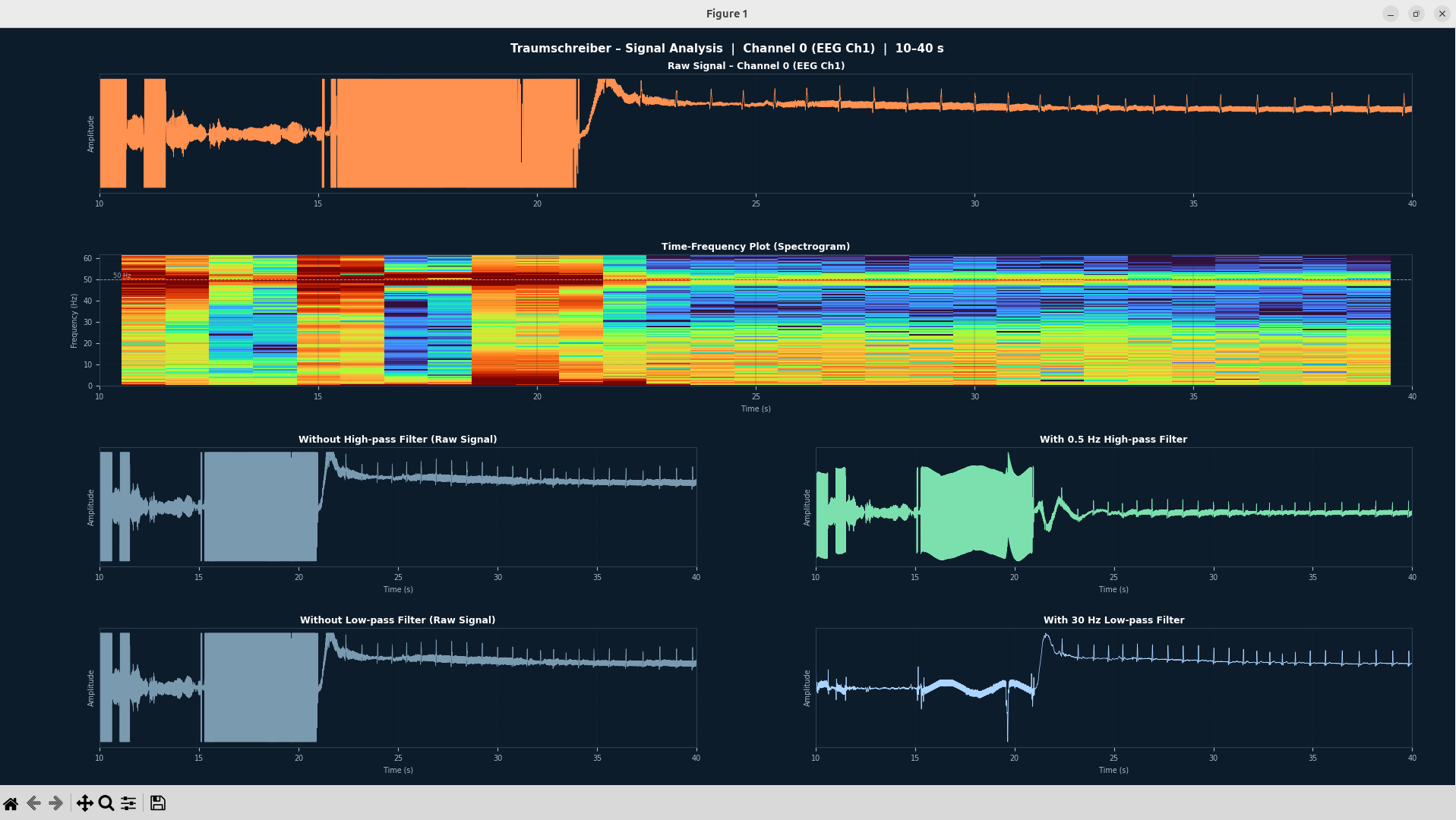
Recording of channel 0 (EEG Ch1), seconds 10–40. The signal starts with a large artefact and then transitions into a clean ECG signal.
| Panel | Observation |
|---|---|
| Raw Signal | Seconds 10–20: the signal clips – it hits the maximum ADC range (orange filled block). This happens with strong electrode or body movement. From ~second 22 a clear ECG signal begins: regular sharp QRS spikes, about 1 per second (~60 bpm). |
| Time-Frequency Plot | In the artefact range (10–20 s) broad energy across all frequencies – everything lights up. Clearly visible: a bright horizontal line at 50 Hz across the entire recording – this is 50 Hz mains noise from power lines and chargers. In the quiet ECG region energy concentrates at low frequencies (heart rate ~1 Hz and its harmonics). |
| With 0.5 Hz high-pass filter | The slow baseline drift is removed – the signal is vertically centred. The artefact block itself remains (it also contains higher frequencies), but in the ECG region the spikes are more readable. |
| With 30 Hz low-pass filter | The signal is noticeably smoother. High-frequency noise (including the 50 Hz component) is removed. The QRS spikes are preserved but lose their sharp edges. The borders of the artefact block look softer. |
Matplotlib shows a toolbar with interactive tools:
Example – clean ECG signal
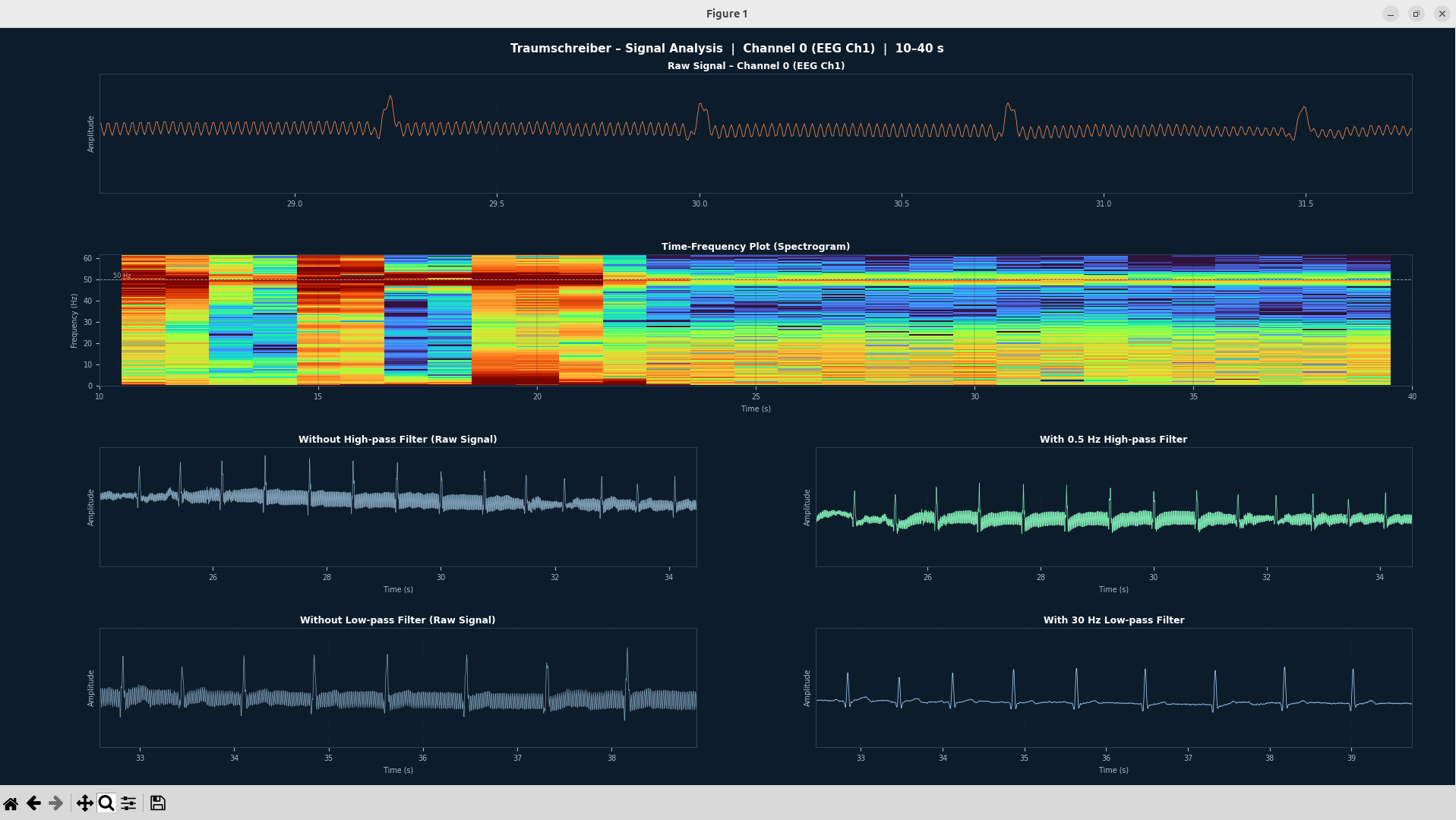
The same recording – now without artefact. The panels were zoomed to different time windows using Pan and Zoom to better compare signal properties. Each panel can be scrolled independently.
| Panel | Observation |
|---|---|
| Raw Signal (~29–31.5 s) | Zoomed in to a few seconds with the zoom tool: clear ECG rhythm with regular QRS spikes. Between heartbeats a faint high-frequency noise is visible – this is mainly 50 Hz mains noise. |
| Time-Frequency Plot (10–40 s) | The TF plot still shows the full 30-second overview. The bright 50 Hz line is continuously visible. From ~22 s the energy concentrates at low frequencies: the heart rate (~1.2 Hz) and its harmonics (2.4 Hz, 3.6 Hz …) form faint horizontal stripes. |
| With 0.5 Hz high-pass filter (~25–34 s) | Comparison in the mid ECG region: left (raw) shows slight baseline drift. Right (HP-filtered) the signal sits exactly at zero – the baseline is completely flat. The QRS spikes remain the same height. |
| With 30 Hz low-pass filter (~33–39 s) | This is the most striking difference: on the left the 50 Hz mains noise is visible as rapid ripple on the signal (the line has a "jittery" edge). On the right the low-pass filter has removed this noise – the QRS spikes stand out clearly and sharply against an almost noise-free background. This panel gives the best ECG for analysis. |
Filter
Passes all frequencies above 0.5 Hz – blocks everything below. This removes slow drift: the signal often wanders slowly up or down due to sweating, movement or changed electrode contact. The high-pass filter straightens the baseline again without affecting the actual heartbeats (1–25 Hz).
The effect is clearly visible in the "without / with" comparison (row 3 of the plot) when the raw signal drifts significantly.
Passes all frequencies below 30 Hz – blocks everything above. Particularly important is 50 Hz mains noise: power lines, chargers and screens radiate electromagnetically at exactly 50 Hz and overlay the biosignal. In the time-frequency plot this appears as a bright horizontal line at 50 Hz (marked with white dashes).
The ECG signal contains almost no relevant information above 25–30 Hz – this range is usually muscle or mains noise with body electrodes.
Butterworth was chosen because it is maximally flat in the pass band (no ripple). sosfilt (Second-Order Sections) makes the computation numerically more stable, especially at high filter orders.
Quest
-
1Calling the Script
Open your Level 3 recording with
--channel 0 --start 0. -
2Look for the 50 Hz line
Is there a bright horizontal line at 50 Hz in the time-frequency plot? That would be mains noise – typical when a laptop charger or monitor is nearby.
-
3Find the button event
Use
--startto jump to the moment you pressed the button in Level 3. Do you see a change in the signal? -
4Observe filter effects
Compare row 3 (high-pass) and row 4 (low-pass): what visible difference does each filter make in your data?
-
5Different time windows
Try
--start 0,--start 30,--start 60– does the noise change over time (e.g. when devices were nearby)?
The Two Measurement Directions
Measures eye movements to the left and right. The electrodes are attached to the outer corners (canthi) of both eyes. Looking left raises the signal; looking right lowers it – or vice versa, depending on polarity.
Measures eye movements up and down – and captures blinking very clearly, since the cornea rotates upward when the lid closes. The electrodes go above and below one eye.
Attaching Electrodes
One electrode at the outer corner (lateral canthus) of each eye. The skin there is thin and sensitive – press gently. This channel shows left-right movements.
One electrode directly above the eyebrow arch (just above the brow end), one on the cheekbone directly below the left eye. This channel shows up-down movements and blinks.
Connect the horizontal electrodes to Channel 1 and the vertical ones to Channel 2 (or other channel pairs depending on the connector). Load both channels separately in EDFbrowser or with the script.
Making a Recording
-
1Attach electrodes
Gently clean the skin around the eyes. No cream or make-up. Attach electrodes as described above. Route the cable so it does not pull when moving.
-
2Insert SD card, switch on
Device switched off. Insert SD card. Switch on – recording starts immediately.
-
3Perform a controlled movement sequence
Sit still, keep the body motionless. Only move the eyes – no head wobbling, as muscle artefacts disturb the signal.
-
4Switch off, remove SD card
After the experiment switch off the device, remove SD card.
-
5Analyse
Open the EDF file with
plot_exg_timedomain.py --type eog. Call both channels separately.
Quest
- 110 s look straight ahead calmly
Baseline – the signal should be flat.
- 2Fast RLRLRL movements – look left and right 10 times
Briskly and rhythmically: left – right – left – right … hold each for about 0.5 seconds. A clear, regular square-wave pattern appears in the horizontal channel. No head turning!
- 310 s pause (straight ahead)
- 45× look slowly up–down (hold 2 s each)
Clear deflections in the vertical channel.
- 510 s Pause
- 610× blink deliberately (1 s pause between each blink)
Blinking produces characteristic spikes in the vertical channel – much faster than eye movements.
- 7Keep eyes closed for 20 s
The signal should remain calm and low. Eye movements behind closed lids (e.g. dreaming) would be visible.
The script plot_exg_timedomain.py can be downloaded here. Place it in the same folder as the EDF file.
python plot_exg_timedomain.py FILE.EDF --type eog --channel 0 for the horizontal channel, --channel 1 for vertical. In the zoom panel (5 s) individual eye movements are clearly visible as slow curves. Blinking appears as a sharp, brief spike.
EEG Frequency Bands
| Band | Frequency | Typical during |
|---|---|---|
| Delta | 0.5–4 Hz | Deep sleep, deep relaxation |
| Theta | 4–8 Hz | Drowsiness, creative thinking, meditation |
| Alpha | 8–13 Hz | Relaxation with closed eyes, calm wakefulness |
| Beta | 13–30 Hz | Active thinking, concentration, cognitive load |
| Gamma | > 30 Hz | High-frequency processing (hard to measure with skin electrodes) |
Attaching Electrodes
About 3 cm left of the centre of the forehead, as close to the hairline as possible – but do not stick into the hair. Rub the skin there with a cloth. Move any hair out of the way.
Mirror position to F3, about 3 cm right of the forehead centre. Both electrodes should sit at the same height – use the hairline as a guide.
- No hairspray, no cream on the forehead
- Do not stick electrode on hairy skin
- The Traumschreiber has no separate reference electrode – the measurement is purely differential between the two attached electrodes
- Do not frown or raise eyebrows during recording – this creates muscle artefacts
Making a Recording
-
1Attach electrodes, check cable
Attach F3 and F4 as described above. Route the cable so there is no tension.
-
2Insert SD card, switch on
Recording starts immediately after switching on.
-
3Sit still, close eyes – wait 30 s
The EEG signal needs some time to stabilise. Use the first 30 seconds as a settling period.
-
4Run the experiment sequence
Exactly following the quest plan below – timing is important for the analysis.
-
5Switch off, analyze
Use
plot_eeg_timefreq.pyto select the channel where F3 or F4 is. The script shows the Beta band (13–30 Hz) over 120 s by default and automatically smooths the spectrogram with a median filter.
Quest
- 120 s Relaxation
Eyes closed. Think of nothing in particular. Breathe. → Beta band is weak, spectrogram stays cool (blue-purple).
- 220 s Cognitive Load
Count backwards from 700 in steps of 7: 700 → 693 → 686 → 679 … Eyes can be open or closed. Work with concentration – do not stop! → Beta power rises, spectrogram becomes warmer.
- 320 s Relaxation
Let go again, eyes closed, stop counting.
- 420 s Cognitive Load
Continue counting from where you stopped – or start again.
- 520 s Relaxation
Final relaxation phase.
The script plot_eeg_timefreq.py can be downloaded here. Place it in the same folder as the EDF file.
python plot_eeg_timefreq.py FILE.EDF --channel 0 --duration 120The script shows the Beta band (13–30 Hz) by default. During relaxation phases colours stay cool (blue-purple); during counting phases they brighten (yellow-orange) – that is the beta rise. If it does not work on F3, try F4 (
--channel 1 or whichever channel F4 is on).
| Parameter | Default | Meaning |
|---|---|---|
--channel / -c | 0 | Channel index (0 = channel 1) |
--start / -s | 0.0 | Start time in seconds |
--duration / -d | 120 | Analysis window in seconds |
--median / -m | 11 | Horizontal median filter in seconds (0 = disabled) |
--median-freq | 1.0 | Vertical median filter in Hz (0 = disabled) |
Example: choose a different start point and longer window:
python plot_eeg_timefreq.py FILE.EDF --channel 0 --start 60 --duration 180
Recording with the Traumschreiber – 100 s relaxation followed by 100 s online chess against the clock (active cognitive load). Channel 5 (Ch6), F3–F4 position.
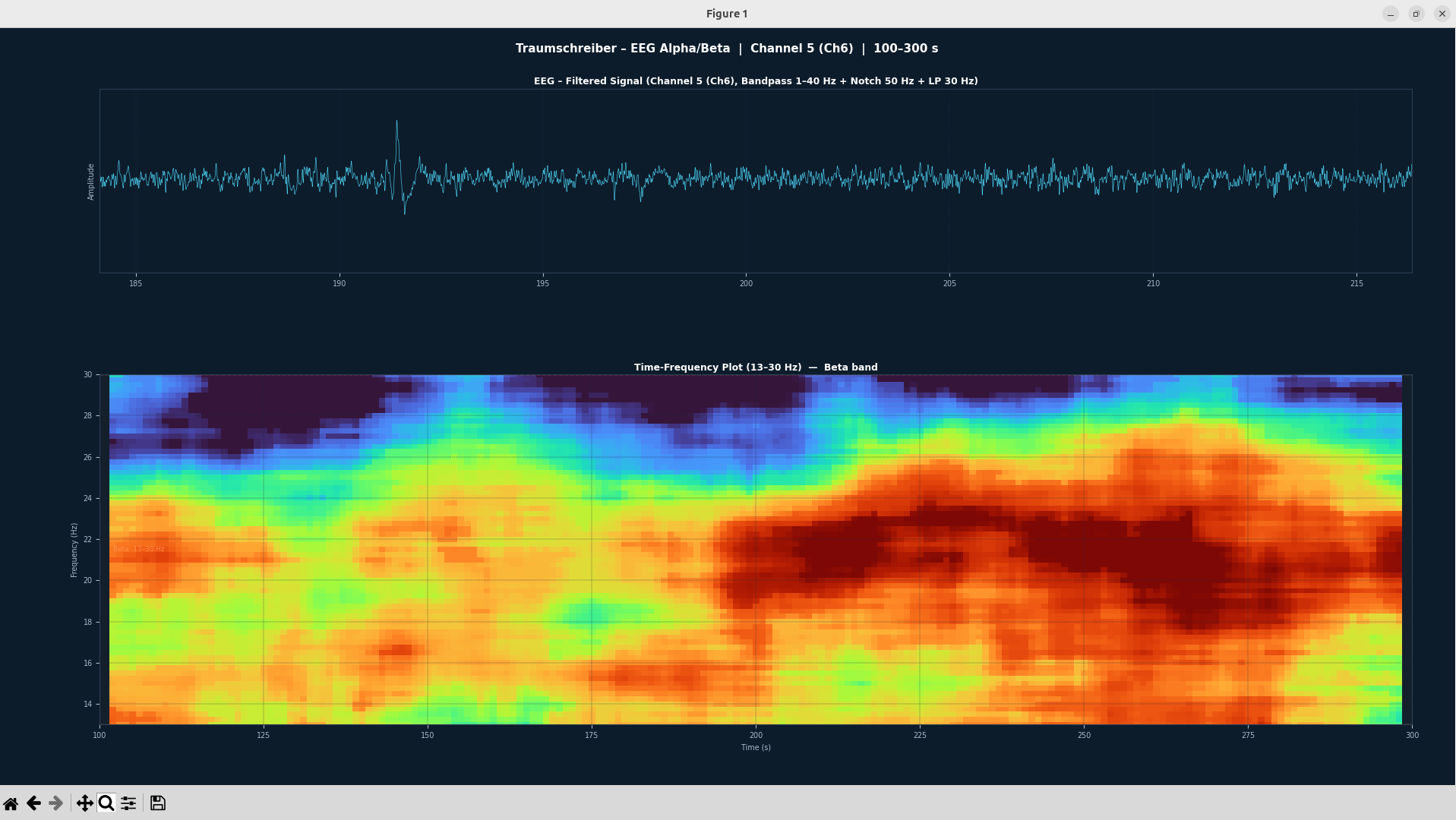
What you see:
The spectrogram (lower panel, 13–30 Hz) shows the beta band over time.
In the first half (~100–200 s, relaxation) the colour is predominantly cool (blue-purple) – little beta activity, the brain is in rest mode.
From ~200 s the chess phase begins: colours shift to warm (yellow-orange-red), signalling markedly elevated beta power – the frontal network is working at full speed under time pressure.
The upper panel shows the filtered EEG raw signal; amplitude alone reveals little – the frequency content in the spectrogram is what is actually interesting.
Unlike ECG or EEG, the EMG does not consist of individual, regular deflections but of a high-frequency, irregular noise that gets stronger when the muscle is active – and drops almost to zero when relaxed. In the time domain one sees thicker, denser bursts during activity, and an almost flat line at rest.
Attaching Electrodes
Two electrodes placed horizontally side by side on the chin, about 2 cm apart. The centre of the chin (slight protrusion, dimple region). Rub the skin thoroughly beforehand – the chin often has some oil/cream.
- Forearm flexor: Electrodes on the forearm (middle inner side) – clear EMG burst pattern when making a fist
- Temporalis: Electrodes over the temple – responds to chewing and jaw clenching
- Forehead (Frontalis): Over the forehead – responds to frowning
Making a Recording
-
1Attach electrodes
Two electrodes on the chin as above – clean and dry. Route the cable upward, not pulling on the jaw.
-
2Insert SD card, switch on
Recording starts immediately.
-
3Run the experiment sequence
Sit still. Keep the jaw relaxed. Avoid movement artefacts from head movements.
-
4Switch off, analyze
plot_exg_timedomain.py --type emg– the bandpass (20–120 Hz) filters everything except the actual muscle signal.
Quest
- 110 s jaw fully relaxed
Mouth slightly open, no teeth clenching. → flat signal.
- 25 s clench jaw firmly
As hard as possible. → strong, dense EMG burst pattern.
- 310 s relax
- 45 s clench
- 510 s relax
- 63× chew quickly (as when eating)
Short, rhythmic EMG bursts – each chewing cycle visible as a separate burst.
- 710 s relaxation, then switch off
The script plot_exg_timedomain.py can be downloaded here (also usable for EOG and ECG, just adjust --type).
python plot_exg_timedomain.py FILE.EDF --type emg --channel 0In the zoom panel you can see how the signal becomes noticeably wider and denser during jaw clenching (more motor units firing). At rest the curve is almost flat. Chewing cycles appear as regularly recurring activity bursts.
What is HRV?
| Metric | What is measured? | Typical range (at rest) |
|---|---|---|
| Heart Rate | Mean beats per minute from all RR intervals | 55–80 bpm |
| SDNN | Standard deviation of all RR intervals – overall variability over the time window | 30–100 ms |
| RMSSD | Root mean square of successive RR differences – short-term variability, parasympathetic index | 20–80 ms |
| pNN50 | Proportion of adjacent RR intervals differing by more than 50 ms | 5–40 % |
The RR interval (also R-R or NN) is the time between two successive R peaks in the ECG – i.e. between two heartbeats. A healthy heart does not beat at a perfectly constant interval but with measurable variability: this variability is a sign of active nervous regulation and has been shown in studies to predict recovery state, stress level and cardiovascular health.
This is what a good ECG from the Traumschreiber looks like – recorded at rest (sitting, holding breath for a cleaner baseline). R peaks are detected automatically (red dots), the HRV metrics bottom right are computed directly from the RR intervals.
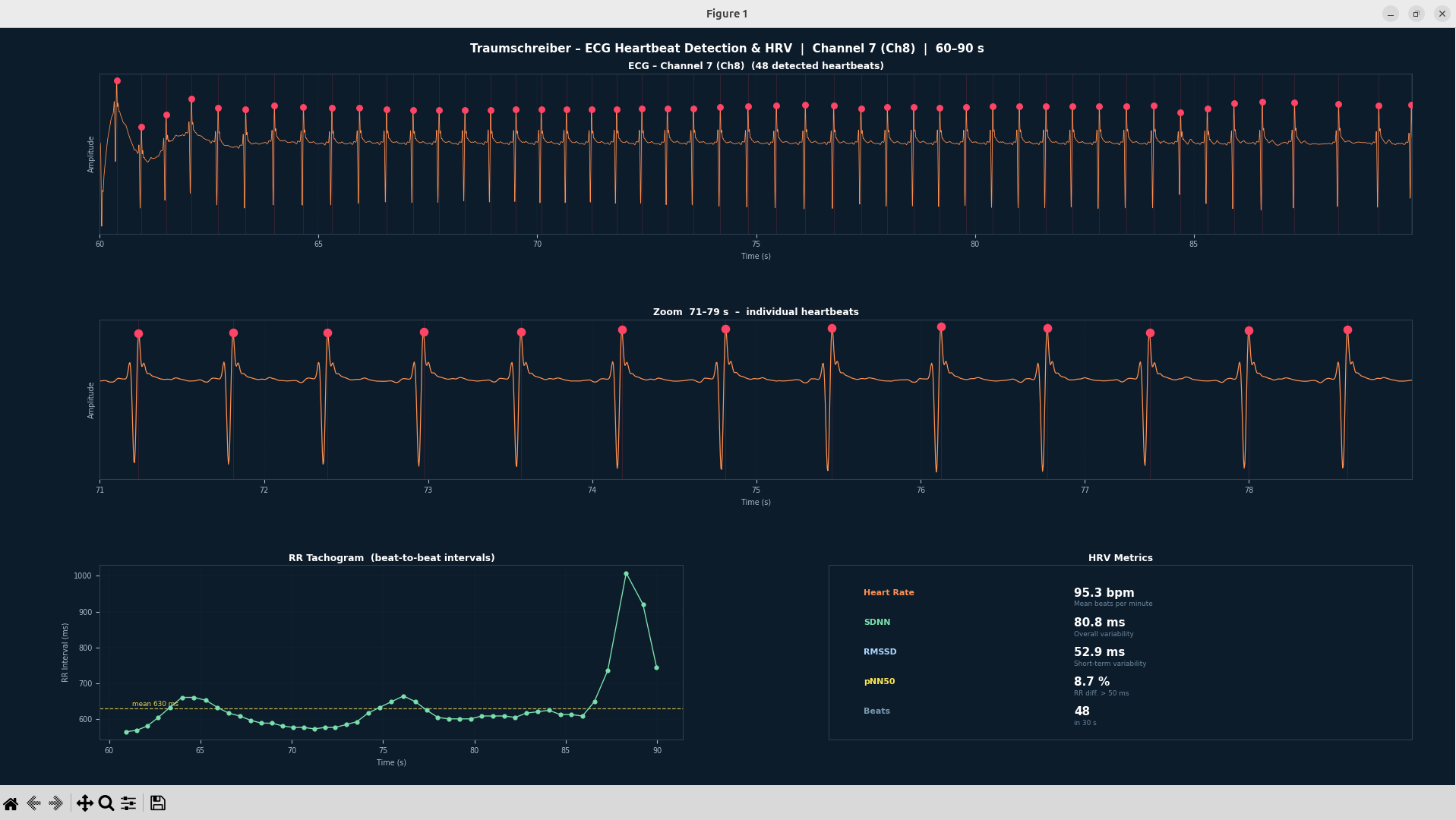
Channel 7 (Ch8), 30 s, sitting, breath held – 48 heartbeats detected, HR 95 bpm, SDNN 80.8 ms
Quest
The script plot_ecg_hrv.py can be downloaded here. Place it in the same folder as the EDF file.
-
1Open terminal and change folder
As described in Level 4. Navigate to the folder with the EDF file and place the script there.
-
2Run the Script
python plot_ecg_hrv.py ADC/AD0041.EDF(adjust filename). The script immediately prints heart rate, SDNN, RMSSD and pNN50 to the terminal – before the window opens. -
3Check plot: are the red dots on the R peaks?
Panel 1 shows the ECG with each detected heartbeat as a red dot. If dots are misplaced or missing: try another channel (
--channel 5or--channel 7), or adjust--startto target quieter signal sections. -
4Read the RR tachogram
Panel 3 shows how the heartbeat interval changes over the 30 seconds. Is the curve calm and steady? Or are there jumps? Jumps arise from artefacts or genuine rhythm changes (e.g. breathing variation).
-
1Copy code to clipboard
Click the button below. The script
plot_ecg_hrv.pywill be loaded together with a prepared explanation prompt into your clipboard. -
2Open ChatGPT or Gemini
In browser: chatgpt.com or gemini.google.com – both are free to use without sign-up (ChatGPT) or with a Google account (Gemini).
-
3Paste and send
Start a new chat. Click the input field, press Ctrl+V (Windows/Linux) or Cmd+V (macOS). Then Enter / Send.
The button copies this prompt + the complete code:
The script contains a few easy-to-change variables at the top. Two good starter modifications:
Change the ECG line colour. In the script there is a line ORANGE = '#ff9151'. The code next to it is a hexadecimal colour value. Change it to another colour – e.g. light blue ('#00ccff') or white ('#ffffff').
Extend the analysis window. The line WINDOW_S = 30 defines how many seconds are analysed. Change 30 to 60 – then 60 seconds are evaluated and you get more heartbeats and more stable HRV values.
Step by step: making the change with AI help
-
1Ask the AI what to change
In the already open AI chat (from Quest 2) write: "I want to change the ECG line colour to light blue (
#00ccff). Show me only the one line I need to change and how it should look afterwards."
The AI will show you exactly the line – e.g.ORANGE = '#00ccff'. -
2Open a text editor – depending on operating system
Important: No Word, Pages or similar office programmes – these insert invisible formatting that destroys the code. Only use plain text editors:
🪟 Windows- Press the Windows key
- "Notepad" type → Enter
- In Notepad: File → Open
- Bottom right at file type: select "All Files (*.*)"
- Navigate to
plot_ecg_hrv.py, open it
🍎 macOS- Cmd+Space → "TextEdit" → Enter
- In TextEdit: top menu Format → Make Plain Text (Cmd+Shift+T)
- File → Open
- Navigate to
plot_ecg_hrv.py, open it
🐧 Linux- Open file manager
- Right-click on
plot_ecg_hrv.py - "Open with Text Editor" or "Open With"
- Choose gedit / Mousepad / Kate
-
3Find the line
Ctrl+F (Windows/Linux) or Cmd+F (macOS) opens the search in the text editor. Type
ORANGE→ Enter. The editor jumps to that line. You see:ORANGE = '#ff9151' -
4Make the change
Select the colour value
'#ff9151'and replace it with the new one – e.g.'#00ccff'. Only change the value inside the quotation marks, do not remove the quotation marks themselves. -
5Save
Ctrl+S (Windows/Linux) or Cmd+S (macOS). The text editor should save the file as
.py– not as.py.txt. If Windows appends.txt: File → Save As → set file type to "All Files" and explicitly enterplot_ecg_hrv.pyas the name. -
6Run the script again
Back to the terminal. Same command as before – the window opens again, this time with the ECG line in the new colour. Congratulations: you have successfully modified your first Python code.
Sleep Stages and Their Characteristics
| Sleep Stage | EEG Pattern | Significance |
|---|---|---|
| Wake | Fast, rhythmic (8–13 Hz, Alpha) | Awake, at rest with eyes closed |
| N1 | Slower, Theta (4–8 Hz) | Sleep onset, light sleep |
| N2 | Spindles, K-complexes (12–15 Hz) | Light to moderate sleep |
| N3 | Slow, Delta (0.5–4 Hz), high amplitude | Deep sleep, recovery and regeneration |
| REM | Fast, similar to Wake, eye movements | Paradoxical sleep, "vivid" dreams |
Prerequisites
Python 3.10+ with PyTorch (the CPU version is sufficient and much smaller). Install required packages:
Then download two Python files:
- plot_sleep_scoring.py — Main script for sleep staging
- anysleep_no_hydra.py — AnySleep model architecture
Note: The AI model (~12 MB) will be downloaded and cached automatically on first run. After that everything works offline.
Everything in one place on GitHub: script, installation guide, an explanation of the data format and screenshots are in the repository Traumschreiber_Python_Offline-Data-Analysis.
Recording
Placement as described in Level 6 (Brain Waves – EEG): F3 and F4 at the hairline. For meaningful sleep analysis, record for at least 6–8 hours (a full night).
- Attach electrodes (F3–F4 as in Level 6)
- Insert SD card, power on device
- Go to sleep and sleep
- Power off device, remove SD card
Quest
ADC/ folder of the SD card (e.g. AD0021_20261020_2351.BDF), and run sleep staging with AnySleep.Basic command:
The script reads the recording, performs AI-based classification, and opens a window with 6 panels: probabilities (hypnodensity), hypnogram, spectrogram, battery & light, raw-signal window, and sleep statistics. Both EDF and BDF are read — the format is detected from the file itself, not from its extension.
Which channel? Only channels with electrodes connected carry EEG. If you are unsure, run the script once per channel and compare the spectrograms: a good channel shows a band of sleep spindles at 12–14 Hz in N2 sleep and several sleep cycles in the hypnogram. A channel without skin contact looks the same all night and stays at a few µV in the raw signal.
Clicking the probability, hypnogram, spectrogram, or battery/light panel loads that moment as a raw trace into the bottom panel — filtered, in µV. From there you navigate by keyboard:
| Key | Effect |
|---|---|
← / → | 10 s back/forward (with Shift: a full window) |
↑ / ↓ | Amplitude scale, ±25 µV to ±1000 µV |
+ / − | Window width: 10 / 20 / 30 / 45 / 60 / 90 s |
The raw panel is ruled like clinical EEG paper: a fine line every second, a stronger one every 5 s. Top right shows the time within the recording, the window width and the amplitude scale. The orange line in the upper panels marks where in the night you currently are.
| Parameter | Default | Meaning |
|---|---|---|
--channel / -c | 0 | EEG channel (0–7) |
--model | auto | Path to anysleep-run1.pth (optional) |
--start / -s | 0.0 | Start time in seconds (for debugging) |
--duration / -d | -1 | Analysis duration in seconds (-1 = entire file) |
--fmax | 30 | Spectrogram upper frequency in Hz (5–60) |
--save | — | Save the plot as PNG instead of showing it interactively |
Example: Analyze from second 3600 (1h) for 14400 seconds (4h):
python plot_sleep_scoring.py NIGHT.BDF --channel 0 --start 3600 --duration 14400
Example Output
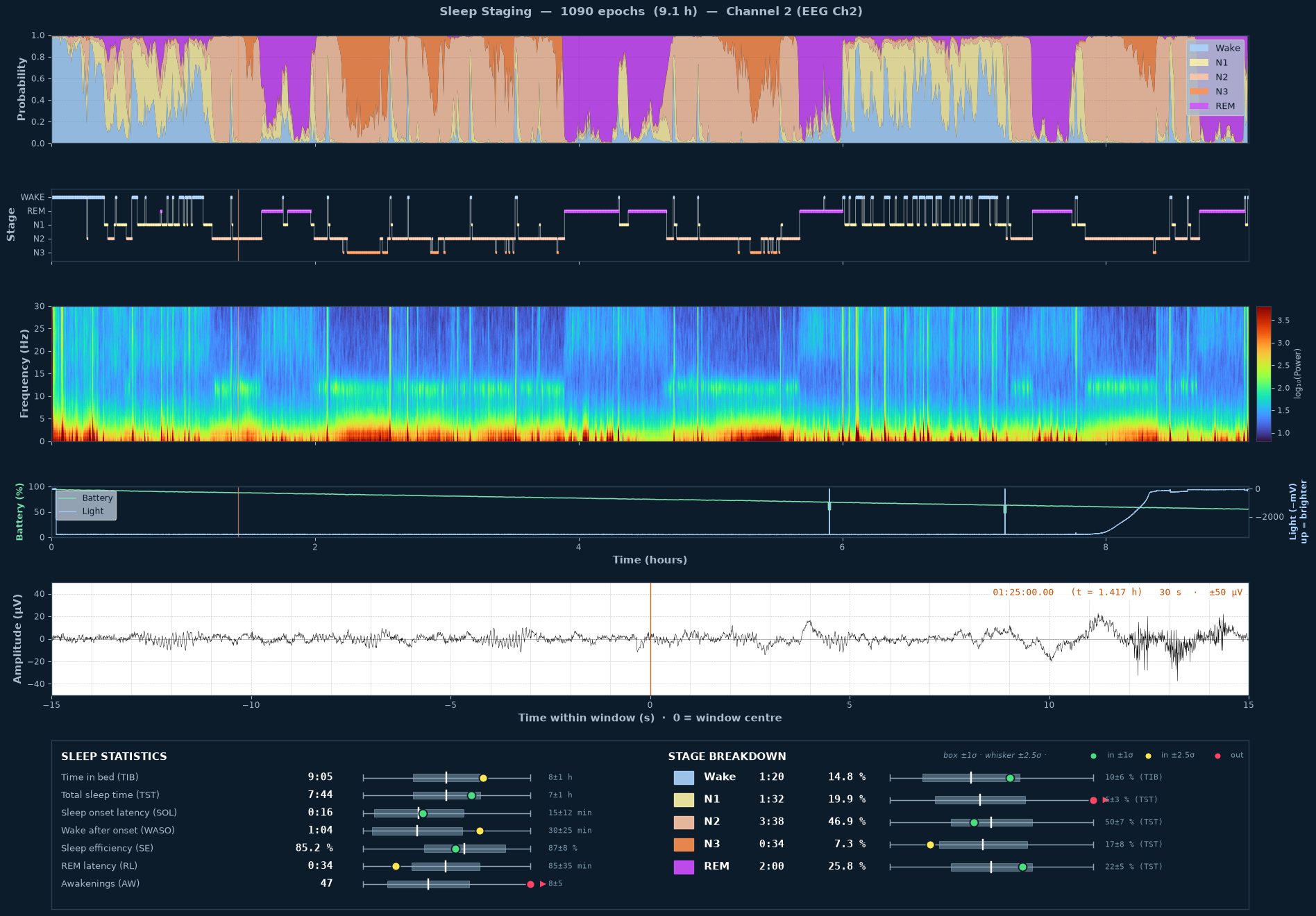
A real recording with the Traumschreiber TS2607: 9.1 hours of night from 23:49, 1090 epochs of 30 s each, channel 2 (forehead electrodes). In the raw-signal window a moment of N2 sleep after 1:25 h is selected. Click the image to enlarge. All 6 panels share the same time axis:
| Panel | What to see |
|---|---|
| Probabilities (hypnodensity) | The stacked color areas sum to 1.0 per epoch — they show the model's confidence for each sleep stage. In clear N3 deep sleep you see mostly orange; in REM magenta dominates. In this example the first ~5.5 hours are clearly structured with alternating NREM and REM blocks; after that more Wake (light blue) and many short transitions — typical morning fragmentation. |
| Hypnogram | The final classification (the most likely stage per epoch) as a step plot. Y-axis from bottom to top: N3 → N2 → N1 → REM → WAKE. In this example you see several NREM-REM cycles of about 90 minutes; deep sleep (N3) only occurs in the first half of the night. |
| EEG Spectrogram (0–30 Hz) | Frequency content of the EEG over time. X = time (h), Y = frequency (Hz), color = log10(Power). Warm colors at the bottom (0.5–4 Hz) = Delta waves, typical of N3. The light green band at 12–14 Hz is sleep spindles and marks N2 sleep. Vertical bright stripes are movements. With --fmax 60 you also see muscle activity and the gap of the 50 Hz notch filter. |
| Battery & light | Green: battery charge in percent, computed exactly as in the sd20 App (here from just over 90 % to just over 50 % during the night). Light blue: the ambient light sensor, upwards = brighter. You see when the light was off and when the morning came — here from about 8 hours after the start. |
| Raw-signal window | A white panel with a thin black trace — the unaveraged EEG at the spot you clicked, in µV. This is where you see what the classification rests on: sleep spindles (short 12–14 Hz bursts in N2, clearly visible in the example), delta waves (slow and high-amplitude in N3), or the artefacts that spoiled an epoch — in the example on the far right. ← / → scroll through the night second by second without losing the overview above. |
| Sleep Statistics & Stage Breakdown | Classical sleep metrics (TIB, TST, SOL, WASO, SE, RL, AW) and division into sleep stages. Mini-boxplots compare your value to normal ranges of healthy adults (25–45 years, meta-analyses): green = within ±1σ (typical range), yellow = within ±2.5σ (still normal), red = outside (abnormal). |
| Metric | Value | Assessment |
|---|---|---|
| Total sleep time (TST) | 7:44 h | ● Normal (norm 7±1 h) |
| Sleep onset latency (SOL) | 0:16 h | ● Normal (norm 15±12 min) |
| Sleep efficiency (SE) | 85.2 % | ● Within range (norm 87±8 %) |
| WASO | 1:04 h | ● Elevated (norm 30±25 min) |
| REM latency (RL) | 0:34 h | ● Short (norm 85±35 min) |
| N1 percentage | 19.9 % | ● Clearly elevated (norm 5±3 %) |
| N2 percentage | 46.9 % | ● Normal (norm 50±7 %) |
| N3 percentage | 7.3 % | ● Rather low (norm 17±8 %) |
| REM percentage | 25.8 % | ● Normal (norm 22±5 %) |
| Awakenings (AW) | 47 | ● Strongly elevated (norm 8±5) |
Conclusion: Enough sleep, regular NREM-REM cycles and REM in a normal proportion. What stands out are the many awakenings and the high N1 share: the second half of the night from about hour 5.7 is strongly fragmented, clearly visible in the hypnogram. Deep sleep is on the low side. Keep in mind: the model was trained on sleep-lab data, and single short wake epochs (e.g. from movement) quickly count as awakenings.